Software for Download - EDX / X-Ray Microanalysis
Software
MA-Table Download
MA-Table Manual
| Service
Analysis labs
Online-Shop
The MA-Table software is available to download for free.
The image of the MA-table program main window (the energy table) is now
available as a poster of line energies (wall chart), critical excitation energies (absorption jumps)
with keV units and with columns of element line overlaps.
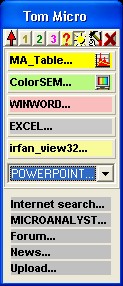
The ColorSEM software and MA-Navigator are new. The freeware MA-Navigator is a very useful tool, not only for all workers in electron microscope labs. It is the most fast and easy way to access often used programs and internet information seites, all together. They are ready to start in one menu only.
... the program MA-Table:
MA-Table is a very useful software to support each microanalyst with information to judge analytical problems. All visible X-ray lines (which are possible to measure with EDX) are extracted from a data base and are displayed. It is possible to search for overlaps and check the overlap situation with a displayed animation (line marks, spectra simulation).
Input a peak position (line energy in keV) and the program is going to search for all elements which emit X-ray lines at that energy. Complete calculation of spectra with Bremsstrahung and more realistically statistics gives the possibility to simulate all influences of differe
top
... for your computer or to print out:
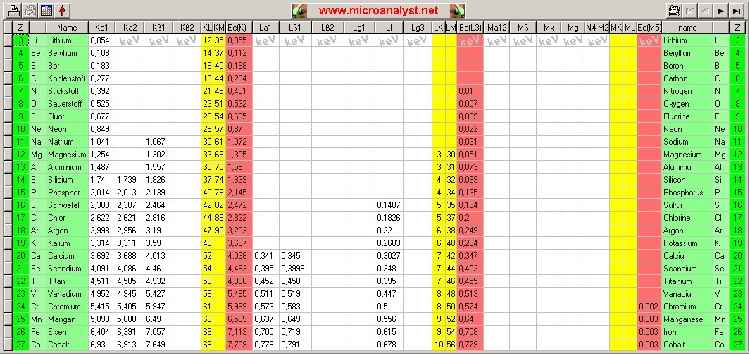
... Click to the image and then the complete poster is going to load (956 KByte). Then copy the picture (clip board) and insert it from the buffer to a common image program. And now print it (setup of printer with color and best quality adjust)!
... or store it directly on the non removable disk and make a direct link on your computer desktop ...
... for the Palm®:
Who want to have this poster for his Handheld with Palm® operating system (PDA) to use every times, should download the following PDF-file:
How to install:
Step 1:
Download PDF-file to your computer and store it.
Step 2:
Open the Explorer (for Windows® only) or an other file handling program, search for just stored files.
Step 3:
Open software "Adobe Acrobat Reader® for Palm OS®" and drag and drop the stored PDF-files
to the open Adobe-window (Of course it is possible to open the Adobe-software only and load the pdf-Datei via the common menu 'open'). The Adobe software optimizes the PDF-files automatically to the properties of your Handheld. Attention, you must use 'images full size' and '256 colours' in Adobe's setup!
Step 4:
Now start the HotSync-process. Now you can use the periodic chart of elements or the chart of line energies (the wall chart) every times on Palm®, if the Acrobat-Reader software is ready installed.
ColorSEM
ColorSEM is a software, with which element distributions already taken (when BMP or TIFF images stored and available with brightness gradations) are possible to merge with b/w electron-images. The final result is a colored Electon Microscope image. The color images are not simple 'false color images', but represent with the color also substantial analytic information. With the additional color there are added also chemical content about the element distributions to the surface featues and structures of the common electron image (further information:
Info7).
The element images can possess a smaller pixel number than the Electron Microscope picture, must however be captured and stored in the same axial ratio.
The import of the images takes place via [Import Images...]. You will find the example images in the same folder, in which ColorSEM.exe was installed:
By clicking into the record sheet symbol one can load the individual images. The first image (marked with SE) is reserved for the electron image. Those maximally eight element pictures (X1...X8) can be assigned freely. It is to be noted with the fact that the element name for each element picture is to examine and should be already edit in this form.
A mechanism permits loading of the complete image set. For that, it is necessary that the names of the pictures and the element distributions are subject to a certain rule. If the electron image has the name "xxxxxSE.bmp" or "xxxxxSE.tif", all other pictures in the listing with the names "xxxxxxYYY.bmp" or "xxxxxxYYY.tif" interprets as element images and will be loaded in same time. "YYY" can contain also a longer designation and immediately than is taken for the element-image comment (see example). A condition is that the check box "Open appropriate ..." (at the bottom left hand corner) is also activated.
The only once imported set of pictures can be stored with [Save Multi-TIF...] with only one action and used again with [Open Multi TIF...]. Within the Multi TIFF-images are stored also the settings of the automatic controllers and color allocations.
With [Save Result...] the mixed image is stored (only as TIF possible). If another format is desired, the 'Copy to Cliboard' function can be used (click with the right mouse button in the image display) to transfer the same image to the buffer. Then you are able to import the image using paste-function in another picture program:
This way is also to recommend for the fast production of reports (copy and then inserting in the text program). The fastest way of the documentation is the function [Print Result....].
Mixing the picture (Morphing):
The electron image of high resolution and surface relevance and the colored element images are added. The goal is a colored Electron Microscope image with relatively little loss in surface informtion quality, but contains additional element information with colors. Depending upon the goals and tasks settings the creativity of the operator can lead to different results. 'Seeing' is subjective and so also the morphing process is quite subjective. Some times a special structure or the color contrast becomes more important, some times something else. The result is however always based on reality, because the color is a result of an element distribution acquired and not only improvement of the visibility by artificial false-colors. The human eye is familiar with the simultaneous processing of the color. It is time for a change from B/W Electron Microscope images to become colored and thus to become images with more information contents.
A set of functionalities are available.
The menu is self-describing. One must try simply something out, the result is visible always live. Click off or switch on individual element images (the color) for morphing. Click on the color rectangles permits a selecting of new colors. It is to be noted however that the colors red/green/blue represent the basic colours. All other colors result also from mixing these three basic colours. So the same mixing colour (e.g. green) in the image can result due to the element with the color or from the combination of the colors blue and yellow of two other elements, to which these basic colours were assigned. Strictly, a one-to-one correspondence of the color allocation only exist if there are only three element images added and if only the three basic colours are assigned.
In addition to that dark colours as possible should be selected during the color allocation. The brightness results later automatically from morphing (mixing) with the electron image and the other element images. Exceptions are sometimes justified (an element picture is very dark).
With something fate one has fast exercise with handling of the color mixer and the coordinated adjustment of contrast and brightness. If the color of an element picture is not sufficiently in the resulting picture present (or another perhaps also too strongly), then the controller beside the colors can lead to individual reconciliation. The Button with the points centers the controller automatically in the center.
Different results for the demo specimen images ColorSEMdemo.tif:
The left picture is somewhat stronger focused to the electron image of surface and mixed with less contrast. A colored image with pastell tones develops. The right picture has substantially more contrast and color saturation. A cutout of the image shows that in each case oxygen (blue) in combination with Fe (red) or Ni (green) results another mixed color. Fe-oxides and Ni-oxides differ clearly from pure Fe, Ni and also from other Oxygen- phases:
It makes also sense to morph only particular or selected element images with the Electron Microscope image:
Other color allocations would obtain other subjective impressions:
The software ColorSEM is developed in a close co-operation with Point Electronic
and is a product of this company.
If you really want to download the demo version of ColorSEM and to install on your computer, then you should click here (2.4 MByte):
If you have already tested the program and if you need a license, then you should ask with an E-Mail for further information and for requirements of conditions:
service@mikroanalytik.de
Otherwise you can get information about conditions and the purchase of a license directly via MA Online-Shop: MA Online Shop
A competition is called to win for the best submitted ColorSEM picture:
ColorSEM Contest
The contest is closed because of lack of participation!
The price is given with a free ColorSEM license. The participants (per person of maximally 3 pictures) receive their pictures back, mixed as TIF or BMP pictures without DEMO stamp.
MA-Navigator
Everyone knows that. In order to be able to make the job really good, one needs an abundance of different individual programs. At the electron microscope there are programs for using the microscope, for the x-ray spectrometer and for further analytic modules. In addition programs come for the logging (text processing), image processing, image conversion and image preparation (e.g. ColorSEM). Additional aid programmes (e.g. MA Table) and utility programs of Windows are still added. These programs are usually callable in the most diverse places. Many confusing and errorpregnant clicks are necessary, is making the operator very nervous and reduces finally the personally productivity.
The program MA-Navigator is the ideal tool for the solution of the problem. The necessary programs can be specified by a simple configuration and are immediately then always sorted and fast by hand. The Navigator offers a menu, which is when desired always on-top. Very little screen place is needed. The MA-Navigator is started automatically with each system start, only if one wants it. The program window is faded in automatically again at the old position. More still, if several colleagues have to work on the same job (same machine), MA-Navigator is able to personalize for up to 20 different persons (or also for different tasks). Up to 20 program starts and 5 InterNet links are administrated at the same time for each MA-Navigator installation.
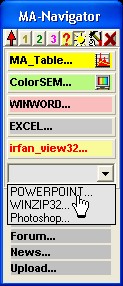
20 programs, 5 InterNet-links via click, minimum screen space,
always 'on-top', simple to configure
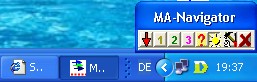
... an ideal addition of the Windows task manager
(some indicated designations are possibly marks of MICROSOFT© and other well-known companies)
Further information with more details is there in the manual:
Manual MA-Navigator
From now on with each MA-Table and ColorSEM installation are installed at the same time the navigator with. If MA-Navigator is to be installed explicitly on the computer, this is possible with the following download:
If you really want to download and to install on your computer the MA-navigator, then you should click here (1.0 MByte):
Download MA-Navigator now
There was a problem in installation script. MA-Navi didn't run in most cases.
Please download again and install once more.
- MA-Naviator is already downloaded


times from this site. -
MA-Navigator consists only of the file "MA_Navi.exe" and optionally "MA_Navi.ini". If both files are copied into another directory (or with a second installation into another directory), MA-Navigator is able to start from there separate and completely individually configurable (e.g. for another operator or another setting of tasks).